
TCS customers can transfer files via Secure FTP (SFTP) which allows customers to upload course imports, Redshelf catalogs and various other files for import/export into the hosted system.
Connection Information
The server can be accessed with the information below.
- Server: connect2.total-computing.com
- If IP address is required: 104.209.214.232
- Please note the server name is the preferred connection method.
- Port: 43522
- Protocol: sftp
Creating A FileZilla Connection for The First Time
The steps below cover how to install FileZilla if you don’t currently have it on your PC. Please note that you will need your credentials in order to complete the process. You can request your credentials by emailing support@total-computing.com.
- Download FileZilla from here.
- Run the installer and install with the default options.
- Click I Agree
- Typically select Anyone who uses this computer and click Next
- Leave the checkboxes checked, and if you would like a shortcut on your desktop, check Desktop Icon
- Click Next for the default Destination Folder
- Next in follow screen
- Leave Start FileZilla now checked and click Finish
- Note that there were no prompts for any addon programs, browser toolbars, etc. as of 5/4/20. Always watch the prompts for any software you download to make sure another program hasn’t been included.
- Create the TCS connection and save it in the site manager
- FileZilla should already be open, if not, go to Start, type filezilla and open the red FileZilla App
- Click OK for the welcome message
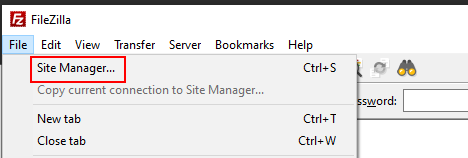
- Go to File and select Site Manager
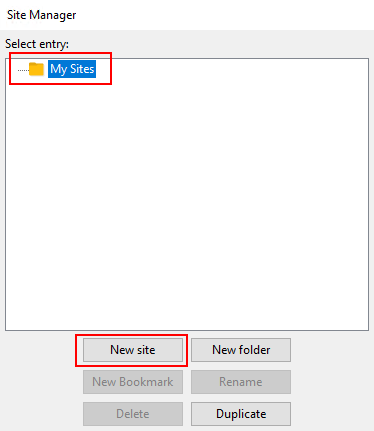
- With My Sites selected, click on the New site button
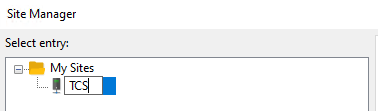
- Name the new entry created (typically TCS) and press Enter
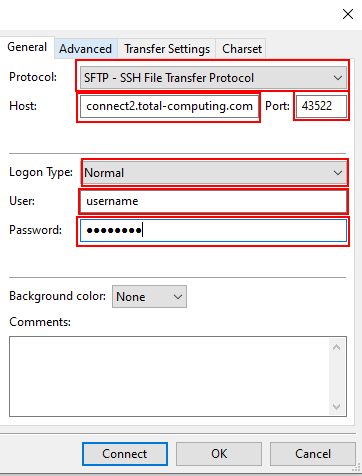
- Customize as follows
- Change the Protocol drop down from FTP – File Transfer Protocol to SFTP – SSH File Transfer Protocol
- Enter connect2.total-computing.com into the Host field
- Enter 43522 into the Port field
- Logon Type should be set to Normal
- Enter your username and password from TCS
- Click on OK to save your changes
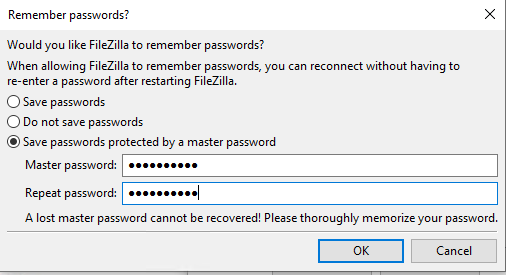
- You will be prompted on whether or not FileZilla should remember the site password. It’s recommended to use a master password.
- A master password will prompt your for your password that you create.
- FileZilla will prompt you for your password every time you connect to the system. After you provide your master password it will use the stored site information to connect.
- How to connect
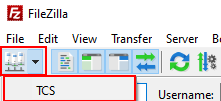
- Click on the small Site Manager icon right beneath the File menu option and click on TCS
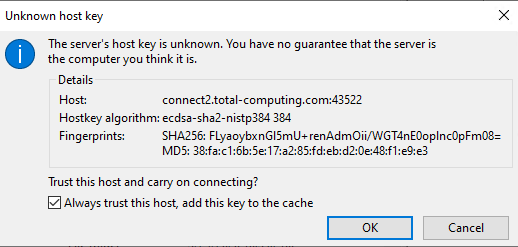
- The first time you connect to the new server you will be prompted to accept the server’s host key. Check the Always trust this host, add this key to the cache and click OK
- You should then be connected to the server with your PC files shown in the panel on the left, and the remote server files on the right.
- Click on the small Site Manager icon right beneath the File menu option and click on TCS
- How to upload files
- This link will take you to their wiki article on navigating the server files, navigating the files on your PC and how to upload and download to/from the server. Please reach out to support if you have any questions after reading that article.